Table of contents
Image compression for faster websites
Images are usually the biggest files on your site. If your product pages feel "slow," it's often not your server or JavaScript – it's a few oversized images forcing mobile visitors to wait. That delay shows up as higher bounce rates, fewer page views per session, and lower conversion rates, especially on paid traffic landing pages.
Image compression is the practice of reducing image file size (bytes transferred and stored) while keeping the visual result acceptable. Done well, it cuts page weight dramatically and improves user-facing speed metrics like Largest Contentful Paint (LCP) without changing your design.
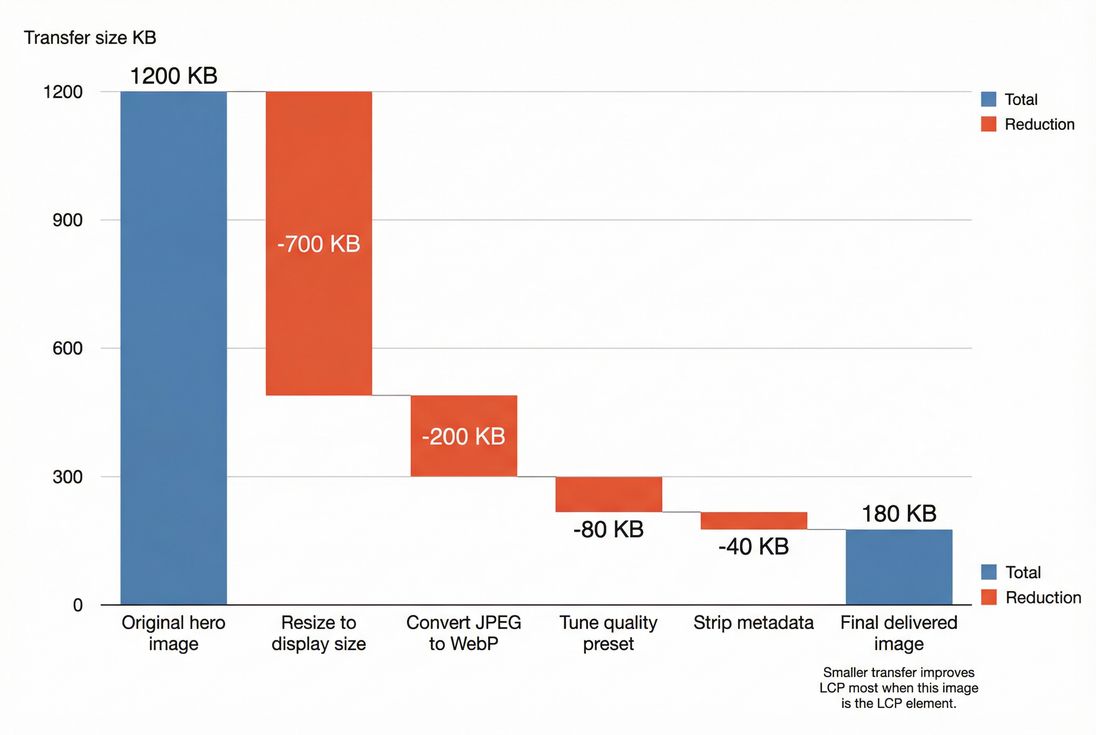
Most image wins come from resizing and modern formats first; quality tuning and metadata removal usually finish the job.
What compression actually changes
When you compress an image, you're primarily changing how many bytes the browser must download (and sometimes how much work it needs to decode). For website owners, that matters because bytes affect:
- Time-to-display for key content, especially the LCP element
- Total page load time, particularly on mobile networks
- Bandwidth and CDN costs if you serve lots of traffic
- Bounce rate and conversion, because users abandon slow pages
Lossless vs lossy in plain English
- Lossless compression reduces file size without changing pixels (e.g., optimizing PNGs, stripping metadata). Savings can be modest, but safe.
- Lossy compression throws away data the eye is less likely to notice (common for JPEG, WebP, AVIF). Savings are often large, but quality needs review on real devices.
Why server compression does not "fix" images
Text assets like HTML, CSS, and JS benefit from Brotli compression or Gzip compression. Images generally do not because JPEG/PNG/WebP/AVIF are already compressed formats. If your images are heavy, you need image-specific optimization (format, quality, resizing), not server compression settings.
What a change in image size means in practice
If you reduce a key image by a few hundred KB, the user impact can be immediate:
- On slower connections, those bytes translate into noticeable waiting time.
- If the image is the LCP element (common for hero banners and product images), reducing it often directly improves LCP.
- Smaller images also reduce the risk that the browser competes for bandwidth with CSS/JS needed to render the page.
The Website Owner's perspective
If your home page and paid landing pages have oversized hero images, you can spend weeks rewriting code and see minor gains. Or you can fix the hero image pipeline and see LCP improve quickly – often with less engineering risk and fewer side effects.
How to find your biggest wins
Image compression is most effective when you focus on the images that matter:
- The LCP image (often the hero or primary product image)
- Images above the fold
- Images that are requested early
- Images that are reused across many pages (category thumbnails, blog headers)
A fast triage method
Use a mix of lab and field thinking:
- Lab tools tell you what is heavy right now (great for debugging).
- Field data tells you who is affected and how often (great for prioritization). See Field vs lab data and CrUX data.
In practice, start with the lab view:
- Run a test (Lighthouse or similar).
- Sort images by transfer size.
- Identify which one is the LCP element and which are above-the-fold.
If you use PageVitals, the most direct place to confirm "what actually loaded, when" is the Network Request Waterfall report: /docs/features/network-request-waterfall/.
What "good" looks like (benchmarks)
These are practical starting targets for mobile. Your site can vary, but if you're far above these, you likely have easy wins.
| Image type | Common role | Practical target size | Notes |
|---|---|---|---|
| Hero / LCP image | Home, landing, PDP | 100–250 KB | Try not to exceed ~400 KB on mobile. |
| Product gallery main image | PDP | 150–350 KB | Keep higher quality than thumbnails. |
| Category thumbnails | PLP | 15–60 KB | Many load together; small savings add up. |
| Blog header image | Article | 80–200 KB | Often becomes LCP on mobile. |
| Logos / UI shapes | Header, footer | 2–20 KB | Prefer SVG when appropriate. |
The "top 10 images" view you want
You're looking for a pattern: a few images dominate bytes and are requested early.
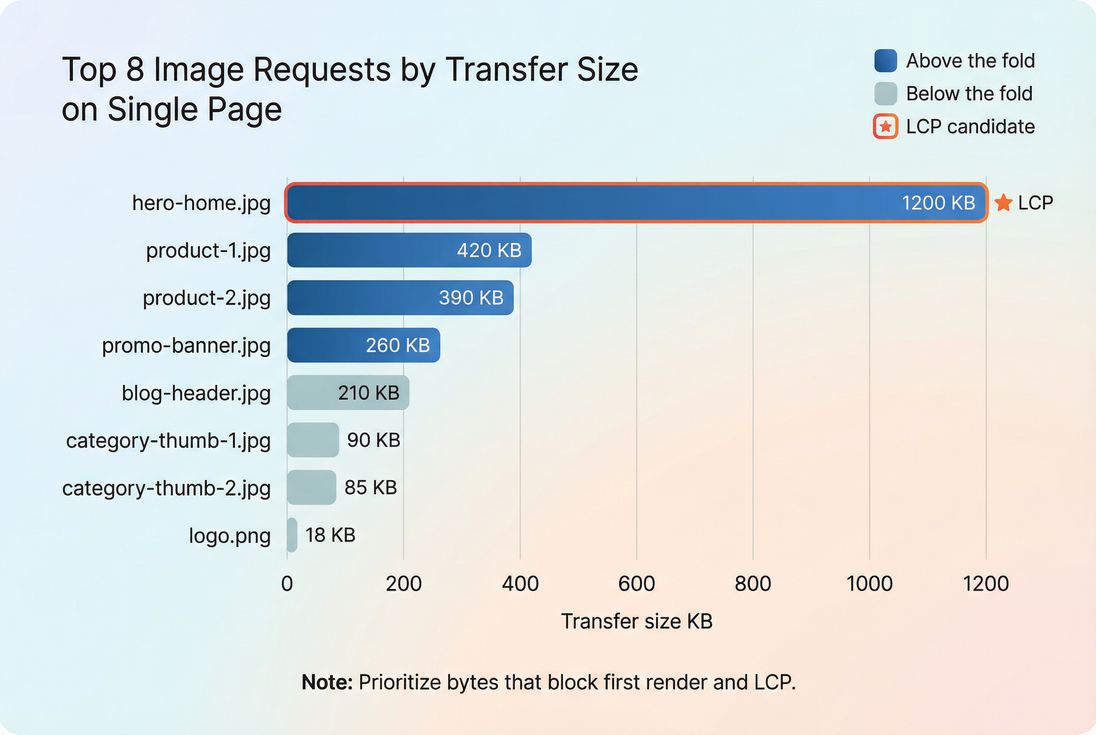
Compression is most valuable on early, above-the-fold images – especially the one that becomes LCP.
Choosing format and quality
Format choice often beats "turning quality down." A huge percentage of image bloat comes from serving the wrong format for the content.
If you haven't already, review WebP vs AVIF and the broader Image optimization overview.
Practical format rules (most sites)
Photos (products, lifestyle, blog headers)
- Preferred: AVIF (smallest) with WebP fallback
- Still acceptable: JPEG (especially if legacy constraints exist)
Graphics with transparency
- Preferred: SVG for simple shapes/logos
- Otherwise: PNG (but optimize it carefully), or WebP lossless
Animations
- Avoid GIF when possible; use video or animated WebP/AVIF where supported (implementation-dependent)
Quality settings that don't backfire
A good compression pipeline uses presets, not one-off decisions.
- Start with one "standard photo" preset for most images.
- Add a "high quality" preset only for the most important product zoom images.
- Add an "aggressive thumbnail" preset for small tiles.
The main failure mode is compressing "by number" instead of by outcome. Always spot-check:
- gradients (banding)
- text inside images (legibility)
- edges and fine texture (product materials, hair, fabric)
The Website Owner's perspective
Your customers don't reward you for the smallest file size. They reward you for fast pages that still look trustworthy. Use compression to remove waste, not to make hero images look cheap.
Don't forget metadata
Many images ship with metadata that users never need (EXIF data, embedded thumbnails). Stripping it often saves only a few KB per image – but across thousands of images, it's meaningful, and it's essentially "free" if automated.
Delivering the right size
Compression is only half the story. A very common problem is overserving dimensions: sending a 2400px-wide image into a 390px container on mobile. The browser still downloads the big file.
Resize first, then compress
If you do only one thing, do this:
- Resize to the maximum display size you actually need
- Then apply format and quality compression
This is why many "compression" projects disappoint: the team compresses a 2400px JPEG instead of delivering a 768px WebP to mobile.
Use responsive images correctly
Responsive images let the browser pick the best file for the current viewport and device pixel ratio. The core tools:
srcsetto provide multiple widthssizesto tell the browser how wide the image will render- Explicit
widthandheightto prevent layout shifts (see CLS and Zero layout shift)
Related reading: Responsive images.
Lazy load what is not immediate
Lazy loading is not compression, but it's often the difference between "a bit faster" and "much faster," because it reduces network contention during the critical render window.
- Lazy load below-the-fold images
- Do not lazy load the LCP image
- Keep above-the-fold work minimal (see Above-the-fold optimization and Lazy loading)
Make sure caching works for images
If users see the same images repeatedly (logos, thumbnails, product images), caching is a major lever:
- Use strong caching headers (Cache-Control headers)
- Ensure long-lived assets have fingerprinted URLs
- Validate you're getting effective caching behavior with Browser caching and Cache TTL
If you use a CDN, also review CDN performance and Edge caching.
How compression shows up in LCP
For many pages, the LCP element is an image. That means image weight, priority, and timing directly influence whether you pass Core Web Vitals (see Core Web Vitals).
Here's the typical "before vs after" story:
- Before: the hero image is large, competes with CSS/JS, and finishes late → LCP is late.
- After: the hero image is smaller and arrives earlier → LCP improves.
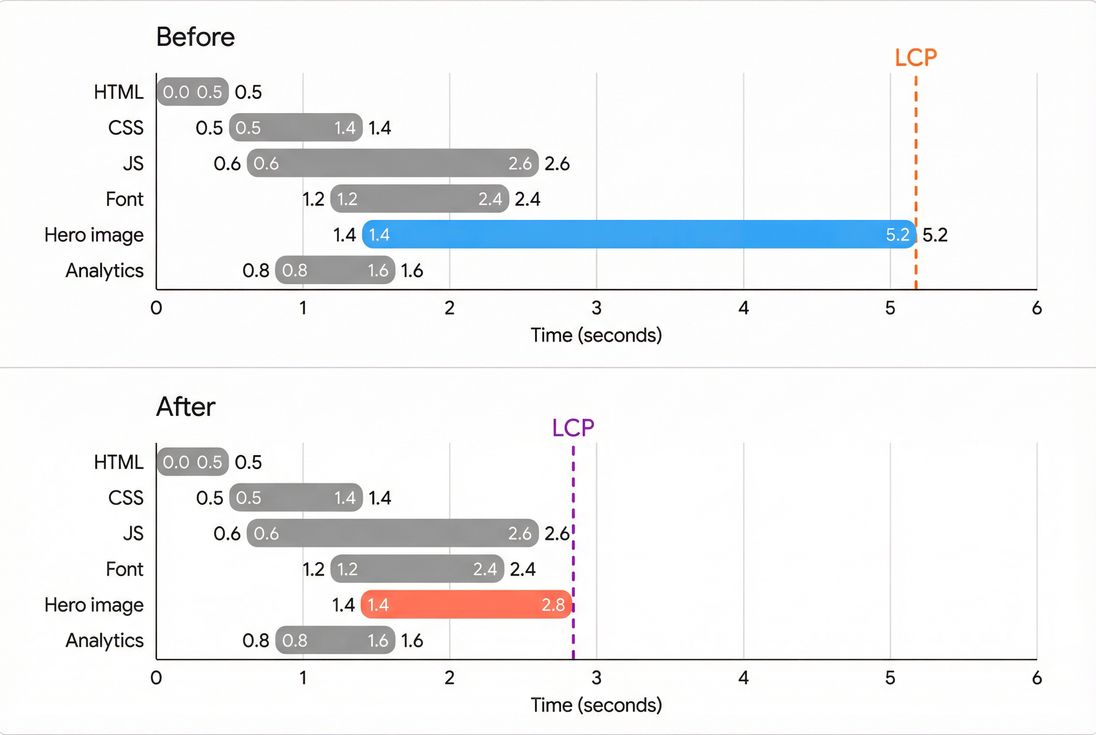
When the hero image is the LCP element, shrinking its transfer time often moves LCP earlier without touching your JavaScript.
Common reasons LCP does not improve
If you compress images and LCP barely moves, check these causes:
- The wrong image was optimized (not the LCP element)
- The hero is loaded via CSS background without proper prioritization
- Render delay is dominated by render-blocking resources like CSS/JS (see Critical rendering path and Render-blocking resources)
- The page does heavy main-thread work (see Reduce main thread work and JavaScript execution time)
- Too many concurrent requests; consider HTTP/2 performance effects and overall HTTP requests
Making it stick (process, budgets, monitoring)
The fastest sites treat images as a pipeline, not a one-time cleanup. That means standardizing how images are created, transformed, and shipped.
Build a simple image performance policy
A lightweight policy that works for most teams:
- Approved formats: AVIF/WebP/JPEG/PNG/SVG (with clear rules)
- Required responsive sizes for key components (hero, PDP gallery, thumbnails)
- Quality presets (thumbnail, standard, high)
- A "no exceptions" rule for the LCP image size range on mobile
Use performance budgets so regressions are caught early
A budget makes "image bloat" visible before it reaches customers. For example:
- Max bytes for the LCP image
- Max total image bytes on key templates (home, PLP, PDP)
- Max count of above-the-fold images
If you use PageVitals, you can enforce this with Performance Budgets: /docs/features/budgets/ and run checks via Lighthouse tests: /docs/features/lighthouse-tests/.
Monitor with field data, not just one-off tests
Once your pipeline is in place, watch real-user impact:
- Are mobile users improving the most?
- Are specific templates (PDP vs PLP) still lagging?
- Did a campaign landing page introduce a new oversized hero?
Field measurement concepts: Measuring Web Vitals and Real user monitoring. If you use PageVitals, the Chrome UX Report feature can help track field trends: /docs/features/chrome-ux-report/.
The Website Owner's perspective
Compression projects fail when they're treated as a one-time task. Your CMS, merchandising team, and creative workflow will reintroduce heavy assets. A simple policy plus budgets turns image performance from a recurring fire drill into a controlled operational process.
Quick decision checklist
When you're deciding what to do next, use this order:
- Is the LCP element an image? If yes, optimize that first. (See LCP.)
- Are you delivering the right dimensions? Fix resizing and responsive delivery. (See Responsive images.)
- Are you using modern formats? Prefer AVIF/WebP for photos. (See WebP vs AVIF.)
- Is quality tuned with presets and reviewed on mobile? Avoid artifacts on key product images.
- Are caching and CDN delivery solid? Ensure repeat views are fast. (See Cache-Control headers and CDN performance.)
If you implement the first three consistently, you'll usually see meaningful improvements in page weight and LCP – often without touching your application code.
Frequently asked questions
On image-heavy pages, compression plus resizing commonly removes 30 to 80 percent of image bytes. That usually improves LCP the most, especially when the LCP element is a hero image. Expect bigger wins on mobile and international traffic where bandwidth is limited and latency is higher.
For most sites, aim for 100 to 250 KB for the LCP hero image on mobile, and avoid exceeding 400 KB unless it is a complex image. If your hero is larger, prioritize resizing to the actual display size and switching to WebP or AVIF before lowering quality further.
AVIF usually produces smaller files at similar quality for photos, but encoding can be slower and tuning matters. A practical approach is AVIF with WebP fallback for photo content, and SVG or PNG for UI graphics. The best choice depends on your image types and your build or CDN pipeline.
Common causes are delivering images at the wrong dimensions, not fixing the LCP image, or having render blocking CSS and JavaScript delay the hero render. Another frequent issue is loading the hero via CSS background without preload. Compression helps, but delivery order and above the fold behavior often decide LCP.
It can be if it creates visible artifacts on product photos, especially around edges and gradients. The goal is not the smallest file, but the smallest file that looks clean on real devices. Use a small set of quality presets, review on mobile, and keep higher quality for key PDP images.
Want to take PageVitals for a spin?
Page speed monitoring and alerting for your website. Get daily Lighthouse reports for all your pages. No installation needed.
Start my free trial