Table of contents
Lazy loading images and iframes
A surprisingly common revenue leak on modern sites is paying the "page-load tax" for content users haven't seen yet – dozens of product thumbnails, review widgets, maps, or videos loading immediately while the hero section competes for bandwidth. The business impact shows up as slower first impressions (lower conversion), higher bounce on mobile, and weaker SEO when Core Web Vitals degrade.
Lazy loading images and iframes means delaying the network request and decoding/rendering work for offscreen media until it's close to becoming visible. Done right, it reduces early HTTP requests and bytes, speeds up above-the-fold rendering, and lowers contention on the main thread. Done wrong, it can slow LCP, increase CLS, or hide content from crawlers.
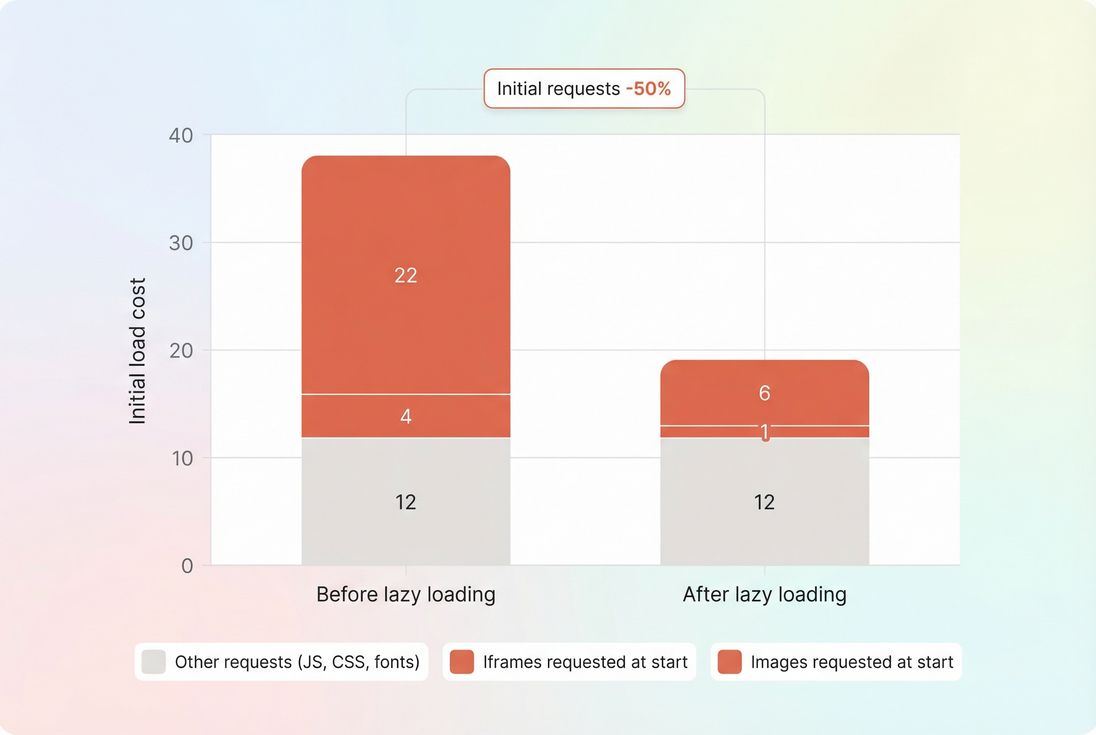
What lazy loading changes
Lazy loading is less about "making images smaller" (that's image compression and formats like WebP vs AVIF) and more about changing when resources are requested.
On a typical category page, without lazy loading:
- The browser discovers many
<img>and<iframe>elements early. - It queues requests for them immediately (or very soon).
- Bandwidth and connection slots get consumed by assets the user can't see yet.
- The LCP image and critical CSS/JS compete for those same resources.
With correct lazy loading:
- Only in-viewport (and near-viewport) media loads immediately.
- Offscreen images/iframes wait until the user scrolls near them.
- The browser spends early time on the critical rendering path (HTML → CSS → first paint), improving FCP, Speed Index, and often LCP.
The Website Owner's perspective: If your "first screen" is slow, every paid click costs more. Lazy loading is one of the few changes that can reduce initial load work without redesigning the page – but only if you protect the hero and first visible products from being deferred.
When you should not lazy load
Lazy loading is not a blanket rule. The biggest real-world mistake is lazy loading the very things users (and Google) use to judge the page.
Avoid lazy loading when the asset is:
- The LCP element (often the hero image or a primary product image). Lazy loading it can delay the request until after layout/scroll heuristics, making LCP worse.
- Above-the-fold content needed for perceived completeness. This is core to above-the-fold optimization.
- Needed immediately for interaction (for example, a payment iframe or an on-page configurator).
- At risk of causing layout shifts if you don't reserve space (a common CLS regression).
A practical rule for many templates:
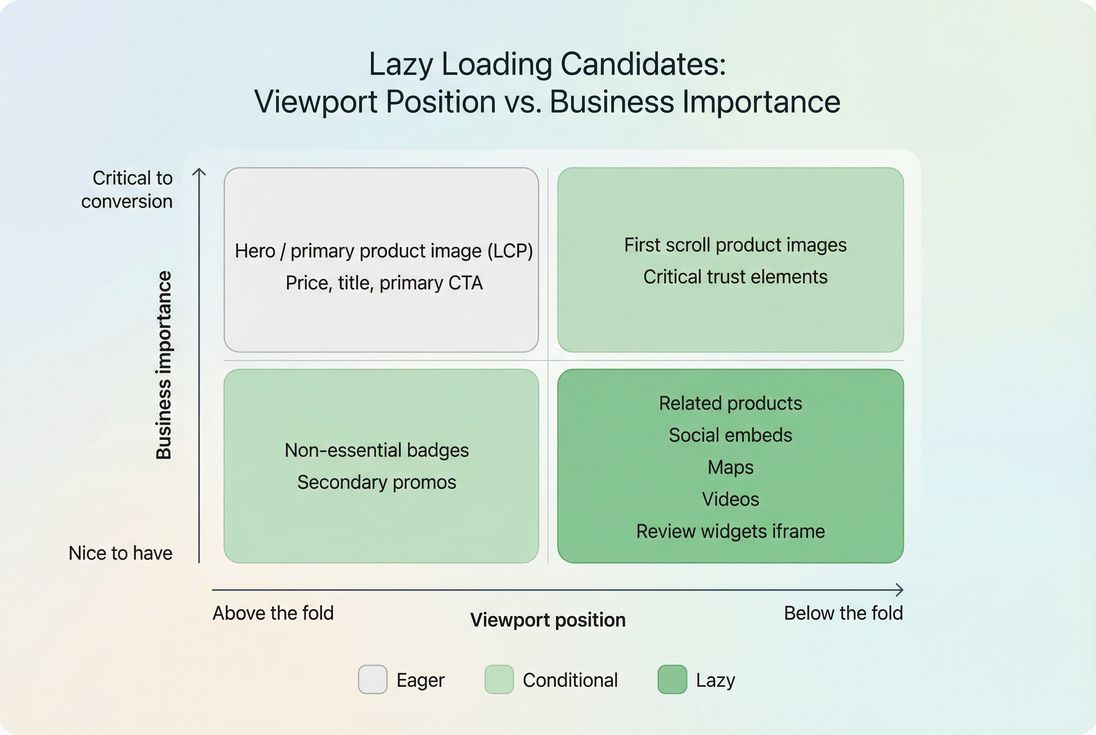
- Eager-load: hero image, logo (if visible), first viewport product thumbnails, critical UI icons.
- Lazy-load: subsequent rows, long-tail gallery images, "related products" carousels below the fold, embedded maps/videos/reviews.
Quick decision table
| Element | Default recommendation | Why |
|---|---|---|
| Hero image (often LCP) | Eager | Protect LCP and first impression |
| First visible product grid row | Eager | Avoid "blank cards" and slow perceived load |
| Below-the-fold product images | Lazy | Save early requests and bytes |
| YouTube/video embeds | Lazy or click-to-load | Iframes are heavyweight and can pull scripts |
| Map embeds | Lazy or click-to-load | Often not needed for first screen |
| Reviews/chat widgets in iframes | Lazy | Reduces third-party contention |
Native lazy loading behavior
For most sites, native lazy loading is the safest baseline:
- Images:
<img loading="lazy" …> - Iframes:
<iframe loading="lazy" …>
What actually triggers the load is browser-controlled. The browser decides when an offscreen element is "close enough" to fetch – typically a bit before it enters the viewport so the user doesn't see a blank gap. The exact distance varies by browser, device, and network conditions.
What influences the outcome:
- Viewport size: bigger viewports can bring more assets "near" the fold.
- Network conditions: browsers may preload more aggressively on fast connections.
- DOM order and discovery: assets earlier in the HTML are discovered sooner.
- Priority and contention: too many eager images can still crowd out critical resources.
- Caching: browser caching and correct Cache-Control headers reduce repeat-visit cost, but don't fix first-visit contention.
If you need more control than native provides, use an IntersectionObserver-based approach. But note: JS lazy loading is easier to get wrong, especially for SEO and CLS.
Implementing image lazy loading safely
A "safe" image lazy loading setup has three goals:
- Do not delay the LCP image
- Do not cause layout shifts
- Do not waste bytes with oversized images
Start with a prioritized pattern
Hero / LCP image (usually eager + prioritized):
- Do not set
loading="lazy". - Consider setting
fetchpriority="high"on the LCP image if appropriate. - Ensure sizing is correct and responsive.
Below-the-fold images (lazy + sized):
- Add
loading="lazy". - Ensure
width/heightor CSSaspect-ratiois set to prevent CLS. - Use
srcset/sizesso the browser doesn't download desktop-sized images on mobile (see responsive images).
Example patterns:
<!-- Likely LCP image -->
<img
  src="/img/hero-1200.webp"
  width="1200"
  height="600"
  fetchpriority="high"
  alt="Winter jackets"
/>

<!-- Offscreen image -->
<img
  src="/img/product-400.webp"
  srcset="/img/product-200.webp 200w, /img/product-400.webp 400w, /img/product-800.webp 800w"
  sizes="(max-width: 600px) 50vw, 25vw"
  width="400"
  height="400"
  loading="lazy"
  decoding="async"
  alt="Product name"
/>
Why this works:
width/heightreserves space to protect CLS.srcset/sizesavoids wasting bytes (pair with image optimization).decoding="async"can reduce main-thread contention during decode on some devices, though it's not a silver bullet.
The Website Owner's perspective: When a category page "feels heavy," it's usually not one huge asset – it's dozens of medium assets all competing at once. The win from lazy loading is often less contention, not just fewer kilobytes.
Don't lazy load by accident
Common ways teams accidentally lazy load above-the-fold images:
- A CMS template adds
loading="lazy"to every image sitewide. - A component library wraps all images in a lazy-loading component without context.
- An A/B test changes layout so an image becomes above-the-fold, but the attribute remains.
A practical safeguard is to only apply lazy loading after a specific position, such as:
- after the first N product cards, or
- after a known section marker in the template.
Avoid "lazy loading without a placeholder"
If the user sees blank space while images load, you may still be "fast" in lab metrics but lose conversions.
Better approaches:
- Use a background color or lightweight placeholder (keep it simple).
- Ensure the layout renders complete cards (text, prices, buttons) even before images.
- Avoid heavy blur-up placeholders that add extra bytes and decode work.
Implementing iframe lazy loading safely
Iframes are often more expensive than images because they can bring:
- additional HTML documents
- third-party JavaScript execution (third-party scripts)
- extra fonts and CSS
- trackers and network calls that compete with your critical resources
Use native iframe lazy loading first
<iframe
  src="https://www.youtube.com/embed/VIDEO_ID"
  loading="lazy"
  width="560"
  height="315"
  title="Product demo video"
  allowfullscreen>
</iframe>
Just like images, reserve space (width/height or CSS aspect ratio) to reduce layout jumps.
Prefer facades for heavy embeds
For YouTube, maps, and social widgets, a common best practice is a facade:
- Render a lightweight placeholder (poster image + play button styling).
- Only create the iframe after click or intentional interaction.
This can outperform native lazy loading because the iframe doesn't load at all until needed. It's especially useful when embeds are below the fold and rarely used.
Key cautions:
- Make it accessible (keyboard and screen reader friendly).
- Ensure analytics and consent flows still behave as intended.
- Don't hide essential content behind an interaction if it's required immediately.
Measuring results and regressions
Lazy loading isn't a metric by itself. You measure it by looking at what changed in the loading timeline and how user-centric metrics responded.
What to look at first
Initial request count and bytes
- Did the number of image and iframe requests during the initial load drop?
- This correlates strongly with perceived speed on mobile.
LCP
- Did the LCP resource start earlier (good) or later (bad)?
- If LCP got worse, your LCP element may be lazy loaded, deprioritized, or crowded by other "eager" images.
CLS
- Did layout shift increase due to missing dimensions/placeholders?
- Lazy loading frequently causes CLS when space isn't reserved.
INP / responsiveness
- Removing early third-party iframe work can reduce main-thread pressure and help responsiveness (INP), especially on lower-end phones.
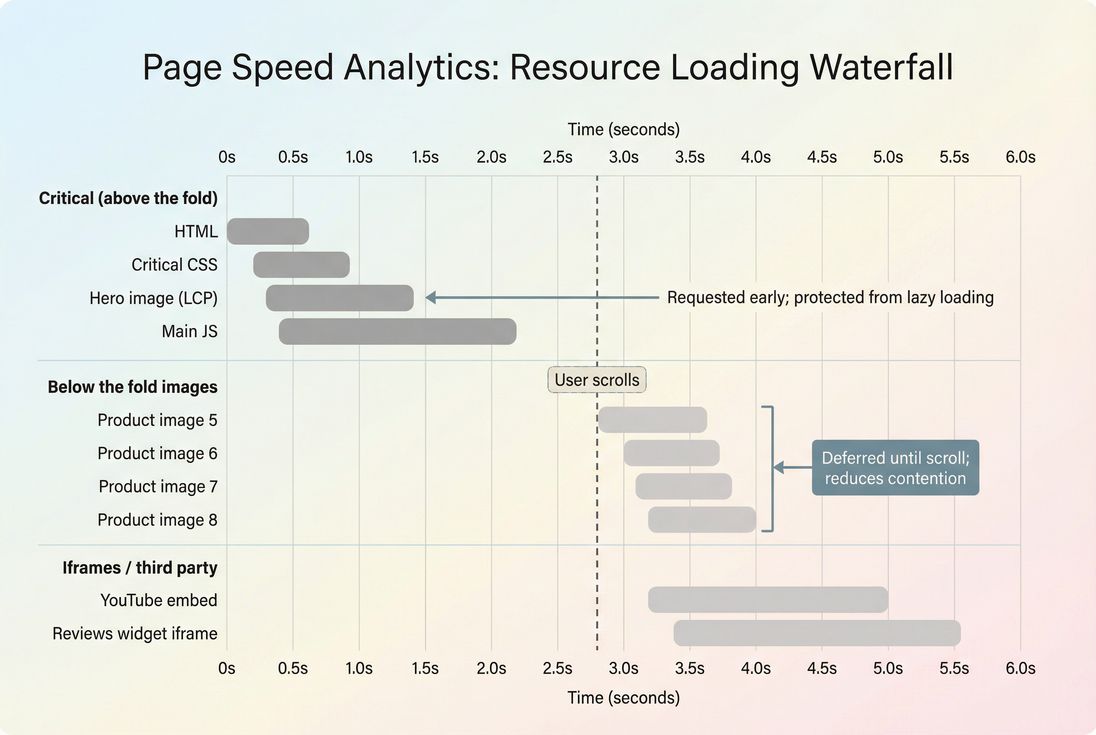
Use a waterfall to confirm the behavior
A network waterfall makes lazy loading "real" because you can see whether offscreen media was actually deferred and whether the LCP request got priority.
If you use PageVitals, the Network request waterfall report is designed for this kind of verification: /docs/features/network-request-waterfall/
Interpret changes like a website owner
- If LCP improves and request count drops: lazy loading is probably working as intended. Keep going – apply it consistently on templates with long content.
- If LCP worsens: first suspect is that the LCP image is lazy loaded or lost priority. Re-check your hero image attributes and critical rendering path.
- If CLS increases: you're deferring content without reserving space. Fix image dimensions and embedded iframe sizing; see zero layout shift and layout instability.
- If lab tests improve but field data doesn't: users may not be scrolling far, or the "real pain" is elsewhere (TTFB, render-blocking CSS, third-party JS). Compare field vs lab data.
If you run Lighthouse regularly (including in CI), track regressions with a budget so templates don't slowly drift back to "everything loads eagerly." In PageVitals, budgets are documented here: /docs/features/budgets/ and Lighthouse tests here: /docs/features/lighthouse-tests/
Troubleshooting common lazy loading issues
Issue: "My hero image loads late"
Most common causes:
loading="lazy"on the hero image (explicitly or via a global component).- The hero is implemented as a CSS background image (harder to prioritize and optimize).
- Too many other images are still eager, crowding the network.
Fixes:
- Ensure the hero/LCP image is eager and properly sized.
- Reduce eager loading to the first viewport.
- Consider other above-the-fold optimizations: critical CSS, render-blocking resources, and asset minification.
Issue: "Lazy loaded images cause layout shift"
Causes:
- Missing
width/height - No reserved container height
- Ads/iframes injected late without placeholders
Fixes:
- Add dimensions to every image.
- Use CSS
aspect-ratiofor responsive containers. - Reserve iframe space with a fixed ratio wrapper.
Issue: "Images never load until I jiggle the page"
Causes:
- Custom IntersectionObserver thresholds too strict
- Scroll container issues (observing viewport, but content scrolls inside a div)
- Elements hidden via tabs/accordions (not intersecting until opened)
Fixes:
- Start with native
loading="lazy"unless you truly need custom behavior. - Ensure you observe the correct scroll container.
- For hidden sections, trigger loads on open.
Issue: "Google isn't indexing my images"
Causes:
- Image URLs aren't present in initial HTML (JS sets
srclater). - Content requires complex interaction to reveal (not just scroll).
- Overly aggressive bot-detection blocks crawling.
Fixes:
- Prefer native lazy loading.
- Keep a real
<img src="...">in the HTML when possible. - If using JS lazy loading, add a
<noscript>fallback.
A practical rollout plan
If you want this to be low-risk (especially on e-commerce templates), roll it out in this order:
- Identify your LCP element on each template (home, category, product).
- Lock it to eager loading and correct sizing.
- Lazy load offscreen images after the first viewport.
- Lazy load iframes, and consider facades for YouTube/maps/reviews.
- Validate with a waterfall and confirm CLS doesn't increase.
- Monitor field metrics to ensure users actually benefit.
Final checklist (what "good" looks like)
- The LCP image is not lazy loaded and is correctly sized.
- Only the first viewport's images load eagerly; the rest use
loading="lazy". - Every image and iframe has reserved space to prevent CLS.
- Offscreen iframes (video, maps, reviews) are lazy loaded or replaced with facades.
- Waterfall shows fewer early requests, and Core Web Vitals trend in the right direction: LCP, CLS, and INP.
If you implement lazy loading with those guardrails, it's one of the highest-leverage changes you can make: fewer early requests, less contention, a faster first impression – and a better chance that users reach the content you're paying to acquire them for.
Frequently asked questions
Usually yes, if your page has many below-the-fold images or embedded widgets. Lazy loading reduces early network requests and bytes, which can improve FCP, Speed Index, and sometimes LCP. It will not help if your LCP element is lazy loaded, or if layout shifts increase.
Typically no. The first viewport (hero plus first visible product cards) should load eagerly so users see content immediately and LCP stays fast. Lazy load images that start offscreen, but consider preloading or using higher priority for images likely to become visible during the first scroll.
Problems usually happen with JavaScript-only lazy loading that hides image URLs from the initial HTML, or requires unusual user interaction to load. Use native loading where possible, keep real img tags in the HTML, and provide a noscript fallback if you must use JS.
For many e-commerce and content templates, aim to load only what is needed for the initial viewport: often 4 to 10 images, depending on layout. If you see dozens of image requests before the first scroll, lazy loading is likely under-applied or misconfigured.
Often more. Iframes can pull in entire document trees, third-party scripts, fonts, and trackers. Lazy loading or using a click-to-load facade can dramatically reduce initial main-thread work and network contention. The key risk is breaking functionality or causing CLS if space is not reserved.
Want to take PageVitals for a spin?
Page speed monitoring and alerting for your website. Get daily Lighthouse reports for all your pages. No installation needed.
Start my free trial