Table of contents
How to achieve zero layout shift
Layout shift is one of the fastest ways to lose a sale without realizing it. When buttons jump, a shopper misclicks, a form field moves mid-typing, or a "Place order" tap turns into "Apply promo." Even small movement can create friction that shows up as lower conversion, higher bounce, and more support tickets.
Zero layout shift means the page stays visually stable while it loads and while late resources (images, fonts, ads, scripts) arrive. In Core Web Vitals terms, you're driving CLS (Cumulative Layout Shift) toward 0.0 by preventing unexpected movement.
What "zero layout shift" actually means
Most owners hear "layout shift" and think "the page feels jumpy." That's accurate, but you need a more precise definition to fix it consistently.
A layout shift is recorded when visible elements move between rendered frames without user input (no tap, click, keypress). Google's stability metric, CLS, aggregates those shifts.
Two key clarifications:
- Not all movement counts. If the user triggers an accordion, a "Read more," or an error message after submitting a form, that movement is generally not counted toward CLS because it's user-initiated.
- CLS is about unexpected shifts during load and early lifecycle. Most CLS problems happen while images, fonts, and third-party scripts are still arriving.
If you want the full metric background, start with Cumulative Layout Shift (CLS) and layout instability.
The Website Owner's perspective: When layout shift hits your money pages (PDP, cart, checkout, lead form), it's not a "scores" problem – it's a misclick and trust problem. Shoppers hesitate when the page moves under them. Fixing CLS is often a conversion optimization project disguised as a technical task.
How CLS is calculated (enough to be useful)
You don't need to memorize the spec, but you do need to understand what makes CLS go up.
Each layout shift is scored using two ideas:
- How much of the screen changed (impact)
- How far things moved (distance)
A common way to summarize it is:
layout shift score = impact fraction × distance fraction
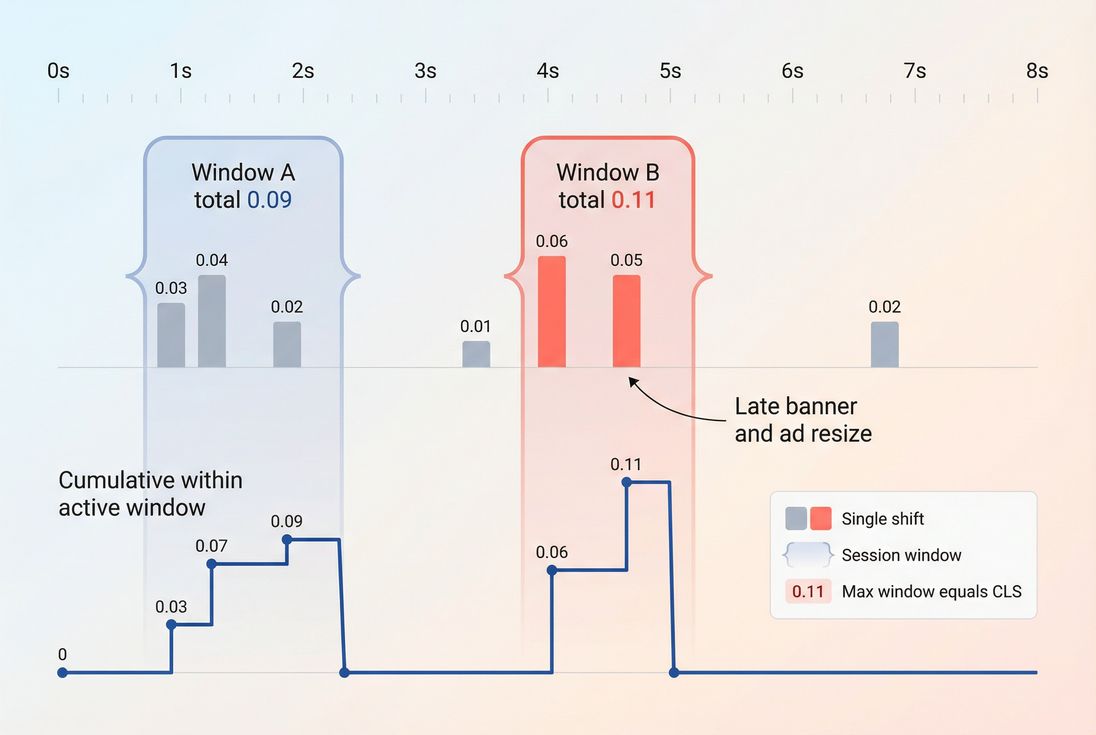
Then CLS is computed by grouping shifts into "session windows" and taking the worst window. Practically:
- Shifts are grouped if they happen close together (within a short time).
- CLS reflects the largest cluster of instability, not an endless sum.
What this means in plain English:
- One big jump can be worse than several tiny ones.
- Fixing a single offender (like a late-injected banner) can drop CLS dramatically.
For measurement basics and why lab and field differ, see Measuring Web Vitals and Field vs lab data.
What numbers are good, and what "zero" buys you
Google's commonly used CLS thresholds:
| CLS (field) | Interpretation | User experience |
|---|---|---|
| 0.00–0.10 | Good | Visually stable for most users |
| 0.10–0.25 | Needs improvement | Noticeable jumps, occasional misclick risk |
| > 0.25 | Poor | Frequent disruption and lost task flow |
So why talk about zero?
- On high-intent pages, even "good" CLS can still be costly if the shift happens near the primary CTA (Add to cart, Continue, Place order).
- Aiming for near-zero forces you to reserve space everywhere, which also improves perceived quality and reduces "jank."
A practical way to set targets:
| Template | Recommended target | Why |
|---|---|---|
| Checkout steps | 0.00–0.03 | Prevent misclicks and form frustration |
| Cart | 0.00–0.05 | Keep totals/buttons stable as scripts load |
| Product detail | 0.00–0.05 | Stabilize gallery, price, CTA block |
| Category / search | ≤ 0.10 | Grid shifts degrade scanning and taps |
| Content / blog | ≤ 0.10 | Trust and readability; fewer accidental taps |
The Website Owner's perspective: If your CLS is "good" but customers complain that "the page keeps moving," your score may be hiding a shift in a high-impact area (like a sticky header resizing). Track CLS by template and prioritize the pages that directly affect revenue.
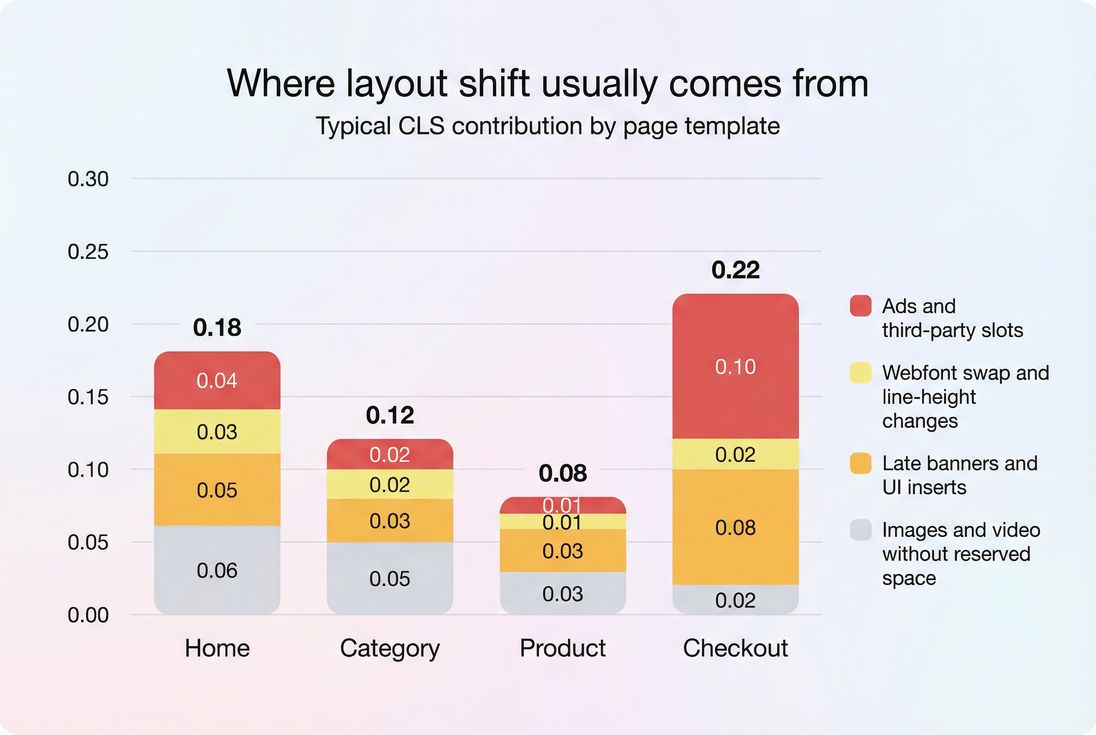
What usually causes layout shift on real sites
Most CLS issues fall into a few repeatable buckets. The fixes are mechanical once you know what to look for.
Media without reserved space
Common scenario: images (or video posters) load late, so the browser initially lays out the page as if they're not there. When the media arrives, everything below gets pushed down.
Typical offenders:
- Product image galleries (especially responsive)
- Hero banners
- Lazy-loaded images without placeholders
- Embedded iframes (YouTube, maps)
What to do:
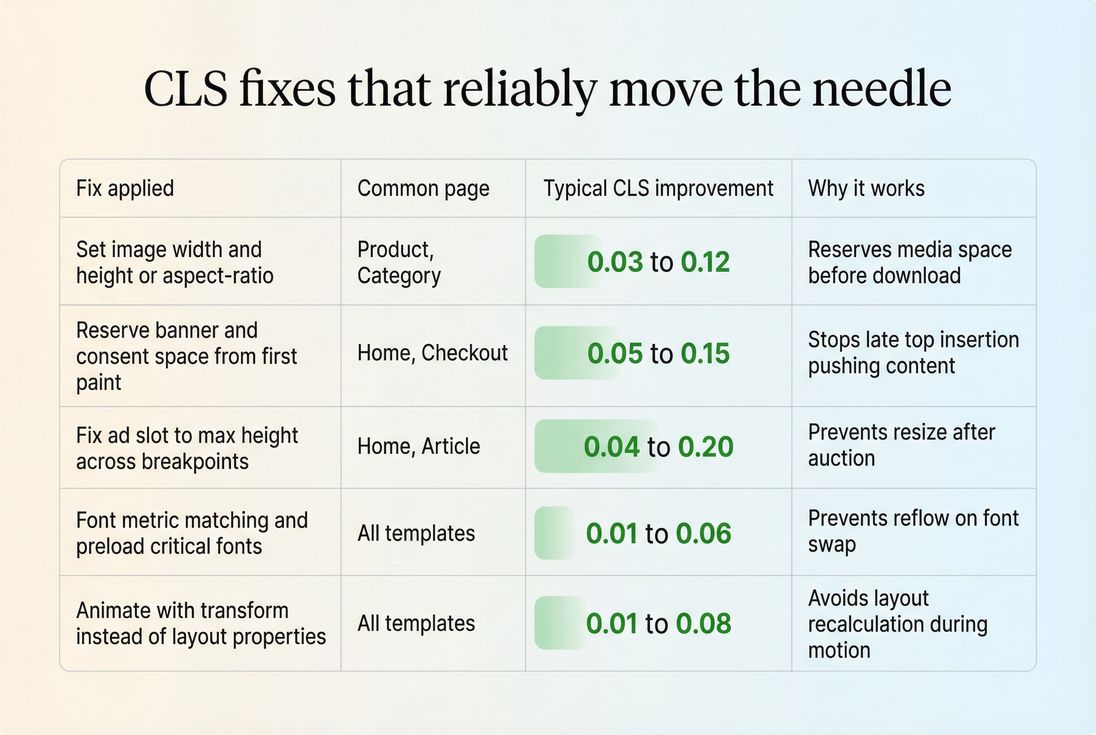
- Always set width and height attributes on images (or CSS
aspect-ratio) so the browser can reserve space. - Use responsive images correctly so different sizes still preserve the same aspect ratio.
- Use placeholders or skeletons that match final dimensions.
Related: Image optimization and Lazy loading.
Ads and third-party slots that expand
Ad stacks are a top CLS driver because:
- The slot starts at one height, then expands when a larger creative wins.
- Multiple auctions cause late resizing.
- Scripts inject DOM above existing content.
What to do:
- Reserve the maximum slot height you allow (even if it shows empty space sometimes).
- Prefer fixed-size containers with predictable breakpoints.
- Avoid inserting ads above existing content after first paint.
Late banners and UI inserts
Cookie consent, email capture, "Free shipping" bars, promo ribbons, and chat widgets often appear after render and push the page.
What to do:
- Prefer overlays (positioned layers) that do not reflow content.
- If it must take space, render the reserved space from the first paint (even if the banner content comes later).
- Avoid resizing sticky headers after load; reserve the max height.
For broader above-the-fold strategy, see Above-the-fold optimization.
Webfonts that change metrics
Font loading can cause shifts when:
- Fallback font renders first, then swaps to the webfont with different character widths and line heights.
- Headings wrap differently after swap.
What to do:
- Use font loading best practices (see Font loading).
- Consider
font-display: optionalfor non-critical fonts. - Use modern font metric overrides (like size adjustments) when appropriate so fallback metrics match the final font more closely.
- Preload critical fonts if you control them (see Preload).
How to eliminate CLS (a practical playbook)
This is the "zero layout shift" checklist that works on most stacks (Shopify, WordPress, headless, custom).
1) Reserve space for everything that loads late
Start with the elements that most often arrive after initial layout:
- Images and video posters
- Iframes and embeds
- Ad slots
- Consent banners
- Personalized modules (recommendations, "recently viewed")
Implementation patterns that work:
- Images: set
widthandheight(or a stable CSSaspect-ratio) - Iframes: wrap in a container with a fixed aspect ratio and a min-height at each breakpoint
- Modules: render a skeleton with the final height, then fill it in
2) Stop inserting content above existing content
Even if the inserted element is small, it shifts everything below it.
Instead of inserting above:
- Render it in the HTML early (even if empty), then populate later
- Or overlay it
This is especially important for:
- Announcement bars
- Validation errors (reserve a message line below fields)
- Dynamic pricing blocks (reserve space for discounts and badges)
3) Use safe animation techniques
Animations can cause layout shift if they affect layout properties.
Avoid animating:
height,width,top,left,margin,padding
Prefer animating:
transformandopacity
If you're using view transitions in an SPA, be careful that route changes don't "snap" layout in a way that feels like CLS, even if it isn't always counted. (Good UX still matters.)
Related: Main thread work and JS execution time – heavy scripts often delay when the page reaches a stable state.
4) Control third-party scripts aggressively
Third-party tags are a common reason CLS "mysteriously" regresses.
Actions that have real impact:
- Remove or delay non-essential tags (see Third-party scripts)
- Load tags with the right attributes (see Async vs defer)
- Audit tag behavior: does it inject DOM, resize containers, or load CSS late?
This is one place where fixing CLS overlaps with the critical rendering path and render-blocking resources.
How to find the exact element causing the shift
Owners often get stuck because "the page jumps" is easy to see, but hard to attribute.
Use a two-track approach:
Track A: lab debugging for reproduction
Lab tools are best for catching the shift on demand and pinpointing the DOM change.
- Run Lighthouse or synthetic tests and look for layout shift diagnostics.
- Use browser DevTools Performance tools to identify shift sources.
- Correlate shifts with late network activity (fonts, scripts, ad calls).
Helpful background: PageSpeed Insights and Field vs lab data.
Track B: field monitoring for impact and priority
Field data tells you if real users are experiencing the shift, and on which devices and pages.
If you use PageVitals, the most direct views are:
- CLS metric definition and collection details: /docs/metrics/cumulative-layout-shift/
- CLS field report and segmentation: /docs/features/field-testing/web-vitals/cls-report/
- Correlate with late-loading resources: /docs/features/network-request-waterfall/
The Website Owner's perspective: Lab tools help your developer fix "the bug." Field data helps you decide "which bug matters." If CLS is only bad on older mobile devices or specific landing pages, you can prioritize the highest-revenue templates first.
How to prevent CLS regressions (the "stay at zero" plan)
Getting to near-zero is achievable. Staying there requires a process, because CLS regressions usually come from "small" changes: a new tag, a new promo module, a theme tweak.
Put layout stability into your release criteria
Practical guardrails:
- Add a performance budget for CLS in CI or release checks (see /docs/features/budgets/).
- Run repeatable lab tests on key templates (see /docs/features/lighthouse-tests/).
- Treat "new DOM inserted above main content after load" as a code smell.
Related: Performance budgets.
Track CLS by template, not just sitewide
A sitewide CLS average can look fine while checkout is unstable.
Segment by:
- Template (home, category, PDP, cart, checkout)
- Device class (mobile vs desktop)
- Traffic source (ads often bring users to specific landing pages)
- A/B test variants (many experiments inject layout late)
Keep third parties on a leash
Make it someone's job to know:
- Which tags can inject DOM
- Which ones resize containers
- Which ones load fonts or CSS late
If your marketing team can add tags without review, CLS will drift upward over time.
A zero-layout-shift checklist for owners
If you want a fast, owner-friendly audit plan, use this order:
- Checkout and cart: reserve space for validation, promos, totals, payment widgets, and any trust badges.
- PDP: lock the gallery aspect ratio and reserve space for price/discount blocks and shipping messaging.
- Global UI: stop header resizing, reserve announcement bar space, make consent overlays non-pushing.
- Ads/third parties: reserve slots and remove tags that inject late content above the fold.
- Fonts: reduce swap-induced reflow on headings and key text blocks.
If you do just one thing: make sure every above-the-fold element has a predictable size before it loads. That single habit eliminates most CLS.
If you're working from reports and need help interpreting why CLS changed week-over-week, pair CLS with timing metrics like FCP and LCP. Many CLS regressions correlate with delayed rendering or late-loading dependencies, not just "layout code."
Frequently asked questions
Zero is realistic on many templates, especially product, content, and landing pages where the layout is predictable. For ad-heavy or highly personalized pages, aim for CLS at or below 0.1 and isolate remaining shifts to non-critical areas. If checkout shifts, treat it as a release blocker.
Use 0.1 as the baseline target because it aligns with Core Web Vitals good thresholds and usually removes user-visible jumping. For high-revenue templates like PDP and cart, push toward near-zero by reserving all media and promo space. Track CLS by template and device, not just sitewide averages.
CLS often changes when third-party scripts, ads, consent banners, A/B tests, or font delivery behavior changes. A new tag can inject late content or change element heights after first paint. Also check responsive breakpoints and personalization. Validate whether shifts happen before any user input, since only those count.
Yes, if they push content down after the page has started rendering. Implement overlays that do not reflow the document, or reserve space from the start if the banner must occupy layout. For chat, avoid auto-expanding panels. Treat any movement of primary buttons or form fields as a conversion risk.
Tie the fixes to high-intent flows: PDP add-to-cart, checkout steps, lead forms. Compare conversion rate and rage-click/misclick indicators before and after the release, segmented by device. Also confirm field CLS improved for the same templates. The win is fewer interrupted interactions, not a prettier report.
Want to take PageVitals for a spin?
Page speed monitoring and alerting for your website. Get daily Lighthouse reports for all your pages. No installation needed.
Start my free trial